Cart 0

 Introduction

Using the Steam Workshop, you can upload fan translations for any game made by Diamondhenge Entertainment. This allows players to experience the game in every language.

Fan translations can be used to change any text shown during gameplay. This includes character dialogue, menus, and other interface elements. With this system, all player-facing text can be translated.
How It Works

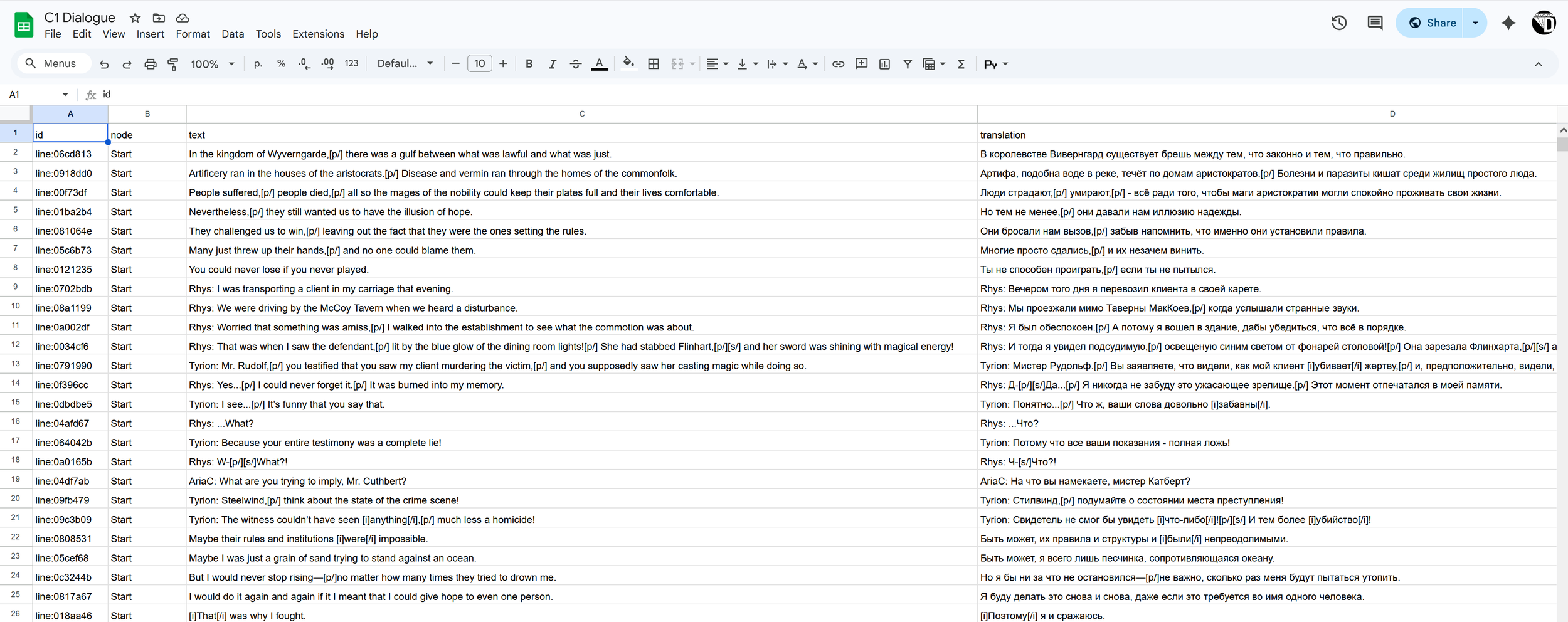
Translating the game text is easy. First, download a set of spreadsheets from our website. These spreadsheets contain all the text in the game. The original English text is entered in the cells on the left. Your job will be to write the translated text in the cells on the right.

After you finish, you will upload the spreadsheets to the game's Steam Workshop. Anyone who owns the game can subscribe to your Workshop item. Players can turn on your translations in the game's settings. The game will then read your translated text and show it in real time while playing.

Downloading the Source CSV Files

The translation spreadsheets must be uploaded as a CSV files. Here are the download links for the spreadsheets of each game that supports this system.

Tyrion Cuthbert: Attorney of the Arcane

Filling in the CSV

I recommend using Google Sheets in a browser to fill in the CSVs. This will correctly display most language characters.

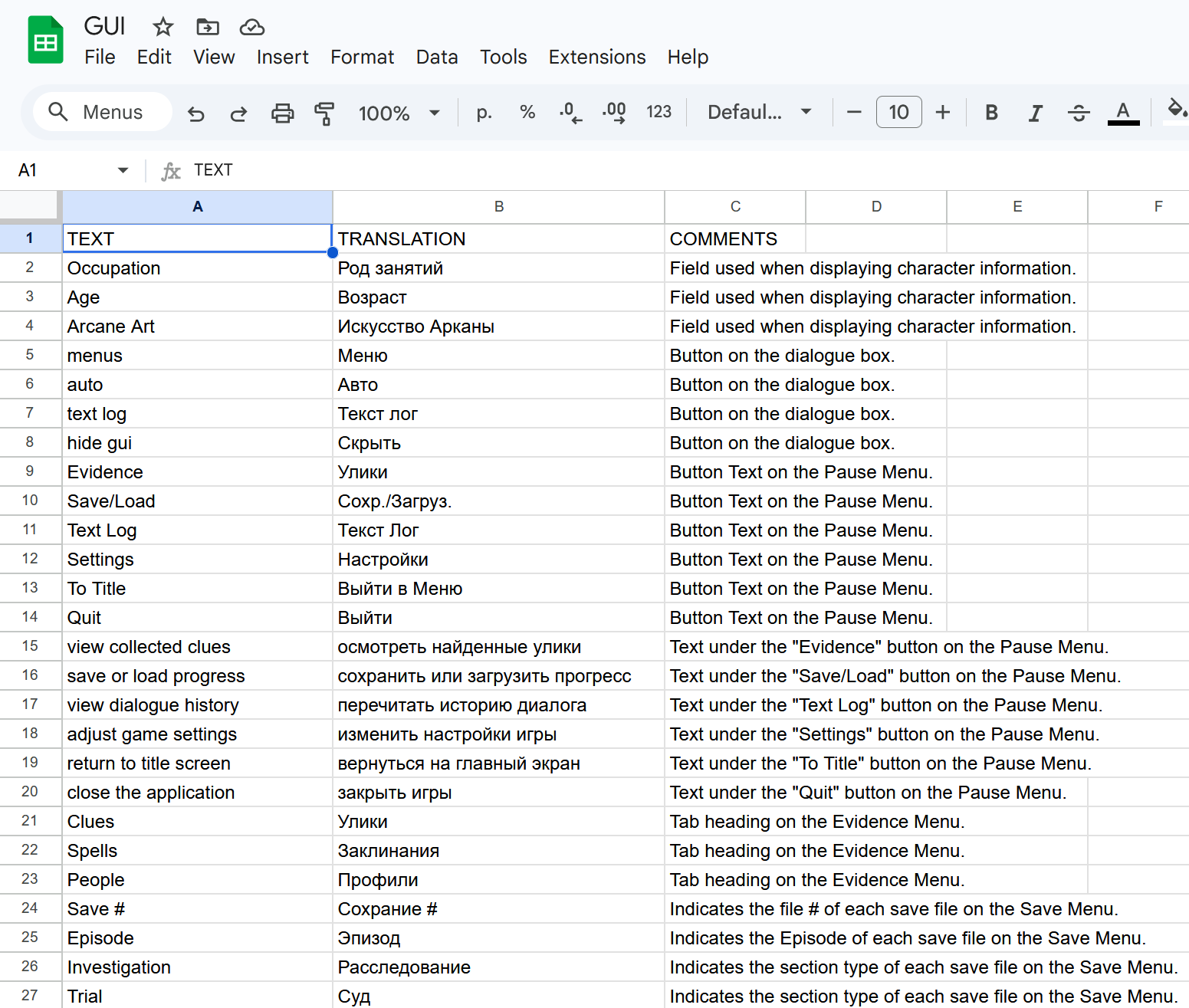
Let's start with GUI.csv.


This spreadsheet has three columns:

  1. TEXT – Original English text as it appears in the game.

  2. TRANSLATION – Where you enter your translation.

  3. COMMENTS – Extra information to help you understand where the text appears in the game.

You should enter your translated text in the TRANSLATION column. It is best to translate every cell, but it is not required. If a TRANSLATION cell is left blank, the game will show the original English text.

Other spreadsheets may have extra columns, but the process is the same:

  • Take the text from the original English column on the left.

  • Enter your translated text in the corresponding TRANSLATION column on the right.

For example, text from the DESCRIPTION column should go in the DESCRIPTION TRANSLATION column.

Translating Visual Novel Dialogue

If the game is a visual novel, you will usually need to translate the lines of dialogue that appear in the game. These dialogue lines can include markup tags that make special effects happen in the game. When translating, you should keep these tags in the text.


Below is a list of the most commonly used markup tags:

  • [p/] – Adds a short pause before the next part of the line. Use it after periods or commas.

    Example: Rhys: Yes...[p/] I could never forget such a grisly sight.[p/] That moment was burned into my memory.

  • [s/] – Shakes the screen at that point in the line. Use it for stuttering or yelling.

    Example: Knight: By the Scaled Lord![p/][s/] Look what you’ve done!

  • [b]Text[/b] – Makes text bold.

    Example: Tyrion: It says that the fatal wound contained traces of [b]transmutation[/b] magic.

  • [i]Text[/i] – Makes text italic.

    Example: Tyrion: The sword would've needed to be inserted into the wound [i]after[/i] the victim had died!

  • [w]Text[w/] – Makes text wavy. Use it for funny or silly lines.

    Example: Eris: [w]Woooooooooooooooooooooooooo![w/]

  • [j]Text[j/] – Makes text jitter. Use it for tense or creepy lines.

    Example: Eris: [j]I've finally found you, heavensborn.[/j]

  • [c="Colour"]Text[/c] – Changes text color. You can also use hex codes like this: c="#005500".

    Example: Tyrion: I'm about to make this text [c="Yellow"]Yellow[/c]

Translating dialogue Captions/Eye of Horus

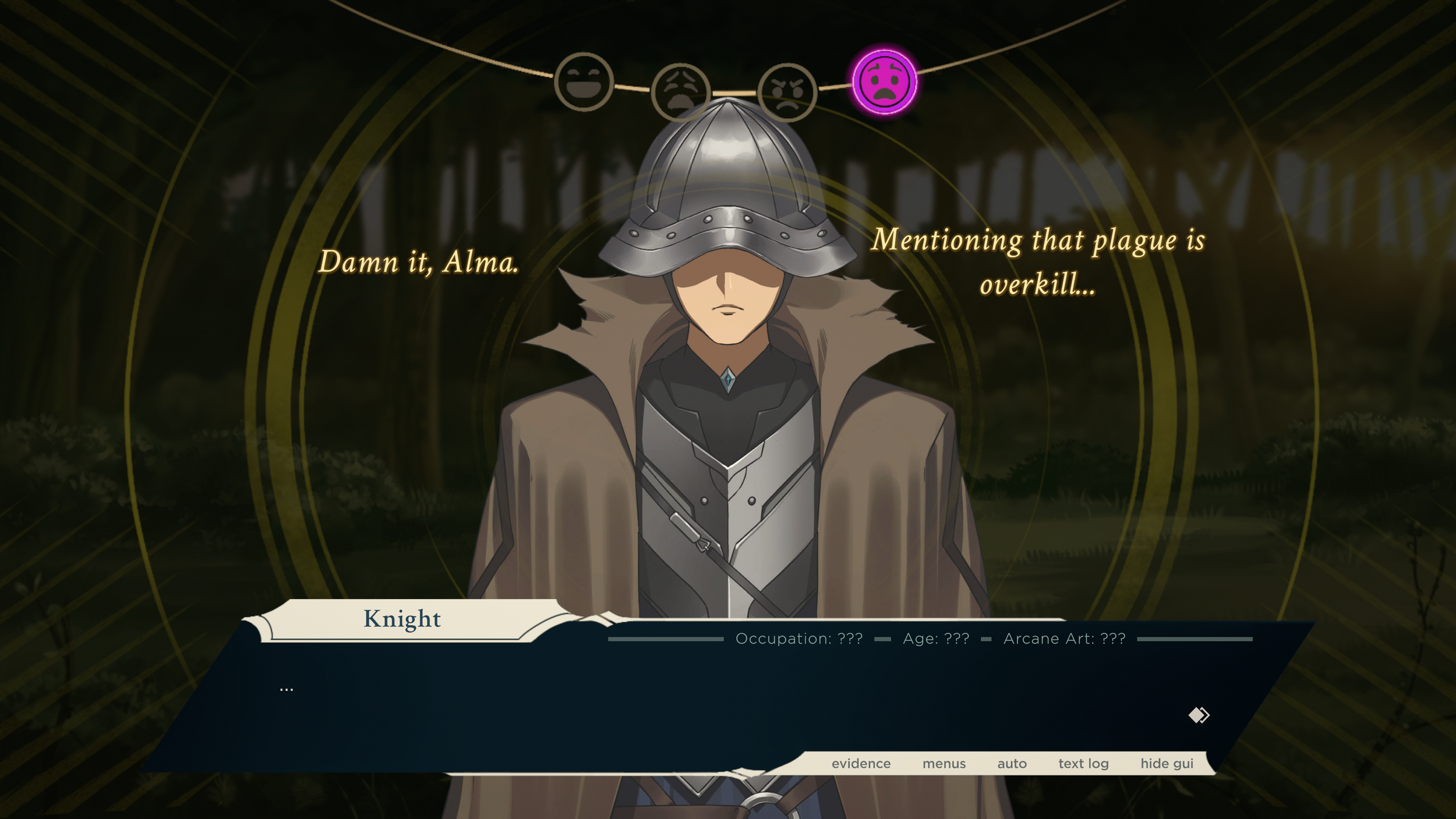
Some dialogue lines include Eye of Horus captions.

Here is an example from Attorney of the Arcane:

There are two important things to know about these captions:

  • Emotion value – Each caption has a second value called "e". This shows the emotion on the Eye of Horus display. Do not change this value.

  • Delimiter – Most Eye of Horus Captions use a "|" symbol. This splits the thought into two sides on the game screen. Keep this symbol in your translation.


Uploading the Spreadsheets to Steam

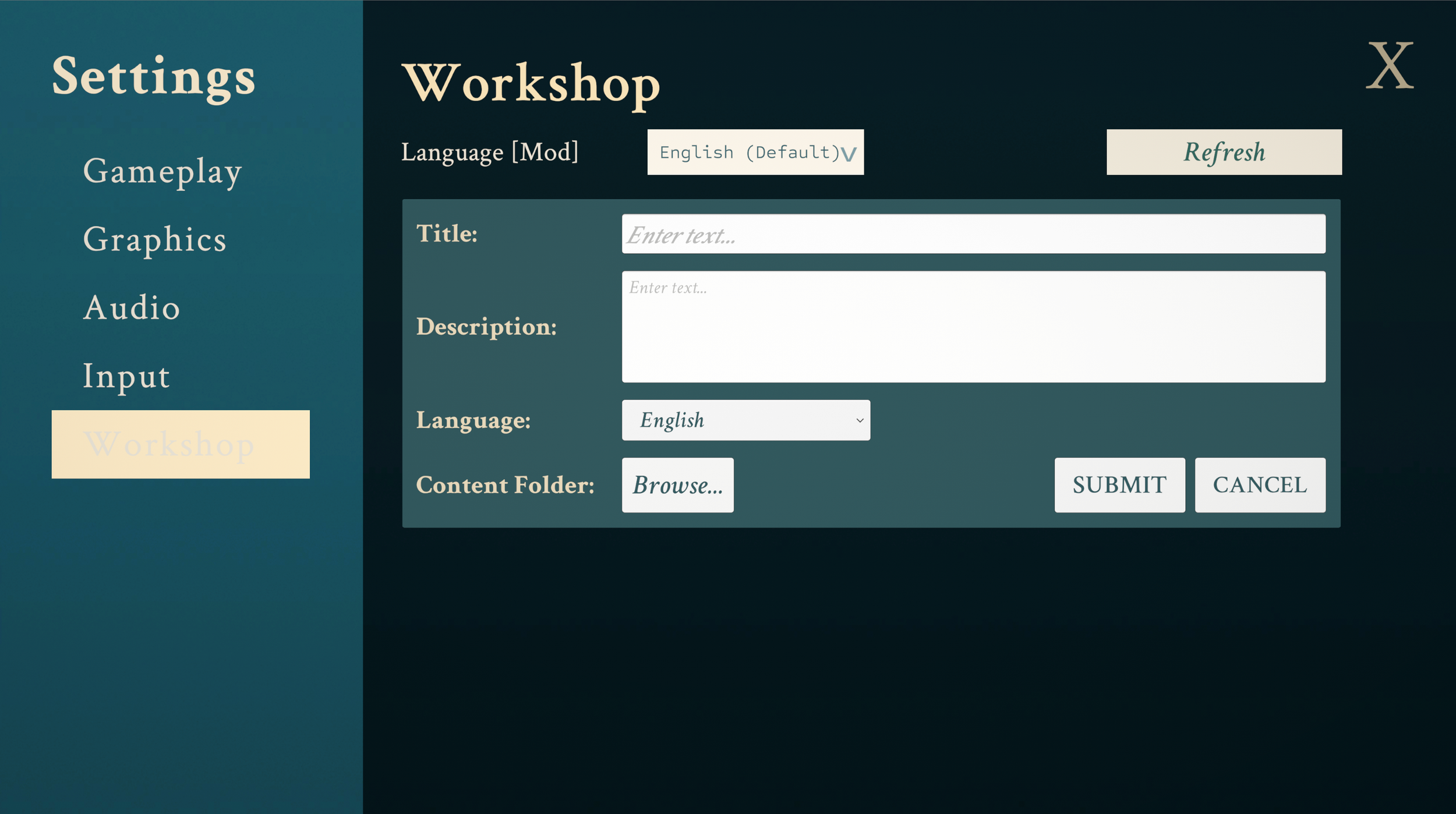
After you finish translating the spreadsheets, you can upload them to the Steam Workshop from inside the game. Make sure all translation files are saved in CSV format. You can access the upload screen under the Workshop tab in Settings.


On this screen, you can add information for your Workshop Item and upload your files. Click Browse and find the folder with your CSV files. You do not need to include every CSV file to upload an item. Only approved spreadsheets are allowed. Do not upload any other files.

Setting up the Steam Workshop Page

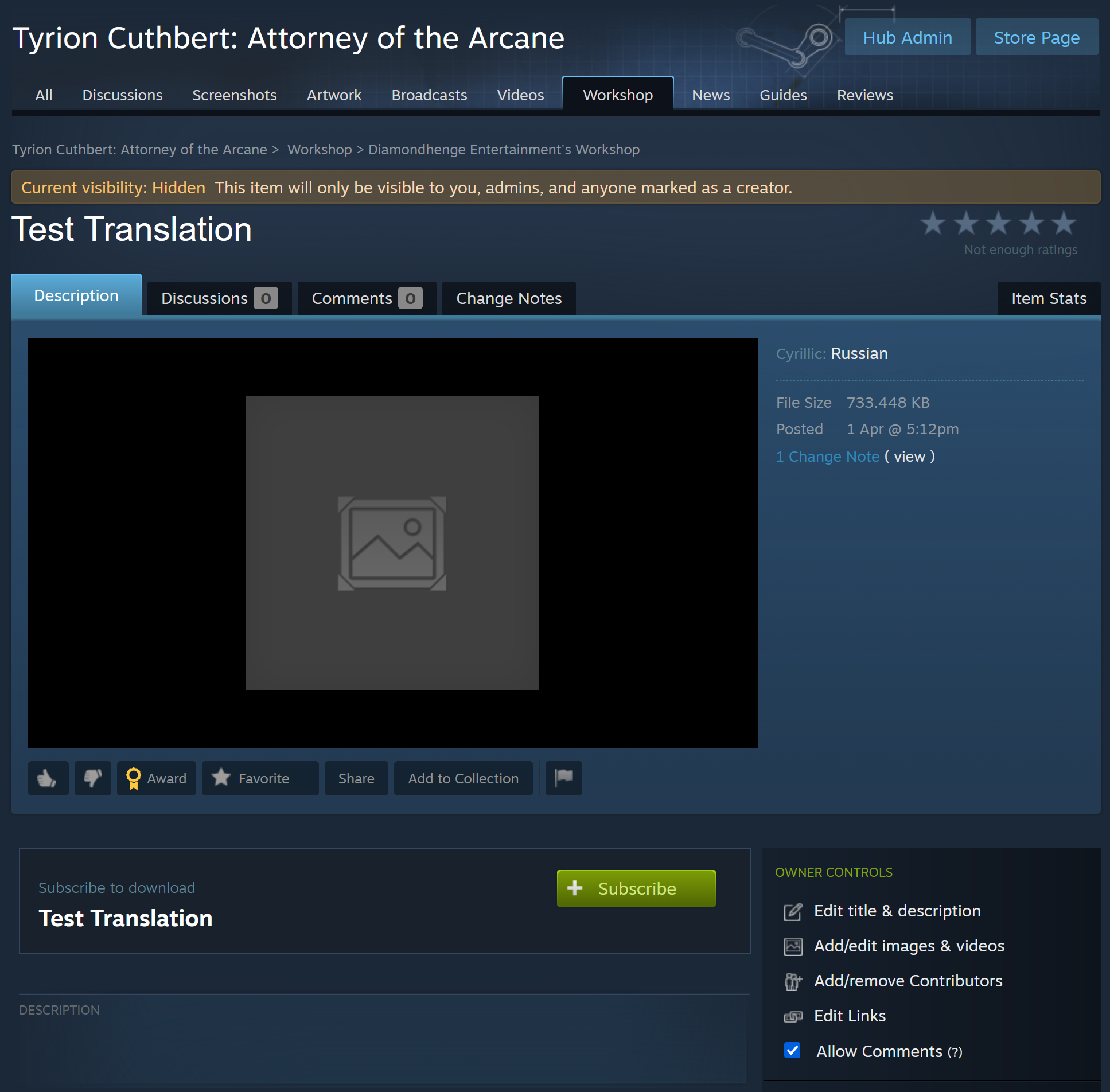
Once you've created and uploaded your Workshop Item, it will be visible on the Workshop Tab in the settings. However, it may take a few minutes to appear. It will be initially marked as "Private", so it won't be visible to Steam users until you set it to "Public". You can quickly open the Item's Steam page in your browser by clicking "Open URL".


Here you can manage Workshop item, add images or videos to your page, and change its visibility.

Testing Your Translations

Before making your Workshop Item public, you should test your translation in the game.

  • Subscribe to your Workshop Item on Steam.

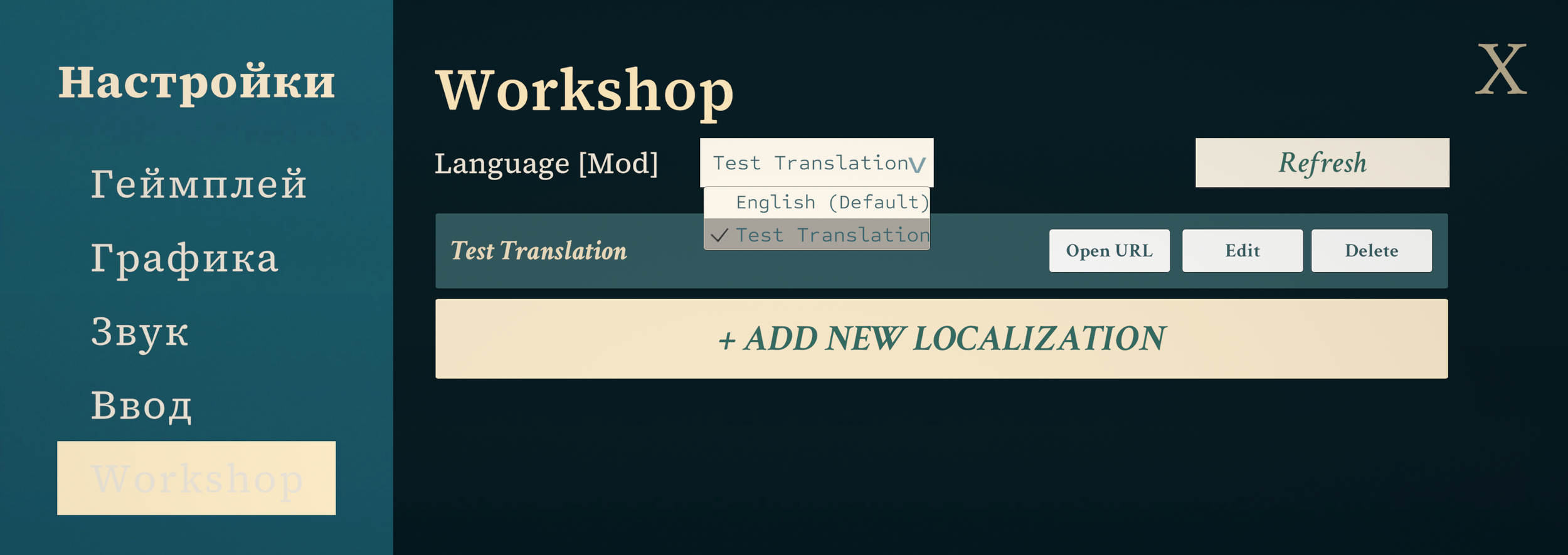
  • Open the game and go to Settings → Workshop.

  • In the Language [Mod] dropdown, select your Workshop Item.

  • The game’s text should change immediately to your translation.


Once the translation is enabled, you can play the game normally. Text you translated will appear in your language. Text you did not translate will stay in English.